
Rough meeting notes often mix promises, ideas, prices and unanswered questions. Asking AI to “make this professional” can turn those ambiguities into confident commitments. This workflow uses ChatGPT Work to make a proposal easier to review while keeping unknowns visible.
Checked: 10 November 2026. Features and menu labels can vary by plan, workspace and rollout.
Before you start
A ChatGPT account with Work available, notes you are allowed to use and a clear idea of the final format. Practise with fictional notes. A proposal can create commercial commitments, so review it yourself before sending or sharing it.
1. Clean the input
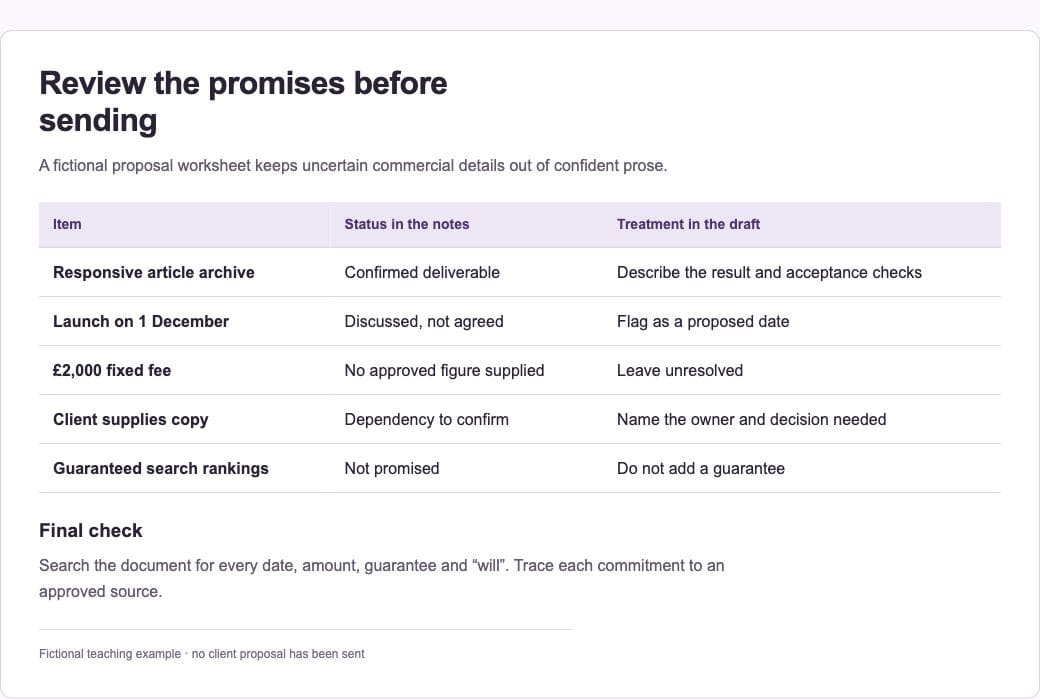
Remove passwords, unnecessary personal details and unrelated client material. Separate confirmed facts from tentative suggestions. If a budget, deadline or deliverable was only discussed, label it as proposed rather than agreed. Preserve the original wording where the distinction matters.
2. Choose a deliverable
Start a Work chat when available and specify the finished artifact you need, such as a document or structured proposal draft. State the audience and desired length. A two-page review draft requires different choices from a detailed statement of work.
3. Extract facts before writing prose
Ask ChatGPT to organise the notes into objectives, deliverables, dependencies, exclusions and unresolved questions. Check this outline first. It is easier to notice an invented milestone in a plain list than after it has been wrapped in polished sales copy.
4. Define acceptance criteria
For each deliverable, describe what the client will be able to inspect. “Improve the website” is vague; “provide a responsive article archive with agreed filters and checked links” is reviewable. Let the AI suggest criteria, but confirm that they reflect what you intend to deliver.
5. Generate the draft
Request the approved structure, concise language and a separate assumptions section. Instruct the model to leave prices, dates and legal terms unresolved unless supplied. If it creates a file, open the actual output and inspect its layout, headings, tables and links.
6. Run a commitment check
Ask for a table mapping each commercial promise back to the source notes. Remove or rewrite anything without approval. Confirm who supplies content, who approves work and what happens when a dependency is late. Share the document only after this review; a finished-looking file is still a draft until you approve it.
A prompt to adapt
Turn these fictional project notes into a proposal for review. First extract confirmed facts, proposed items and unanswered questions. After I approve the outline, create a concise document with objectives, deliverables, acceptance criteria, dependencies and exclusions. Do not invent prices, dates, guarantees or legal terms. Finish with a checklist of commitments that need human approval. Do not send it to anyone.
Check the result
Compare the final document with the original notes. Search for every amount, date, guarantee and “will”. Open any generated file, check the page layout and make sure tables have not hidden a condition. Keep the editable version so corrections are straightforward.
Common questions
Can ChatGPT send the proposal automatically?
Keep sending outside this drafting workflow unless you have deliberately authorised a specific recipient and final version. Creating a document and approving a commercial commitment are separate decisions.
What if a file is not created?
Check the tools available in the account. Ask for a structured, editable draft in the chat if file creation is unavailable. Do not describe an attachment as delivered until you can open it.
Official references
Keep going
Keep recurring brand context in a Project when several proposals use the same approved information. You can also build a first brief with our free prompt generator.