
A short Blender script can save repetitive work, but an attractive AI answer can also delete objects, overwrite a file or assume the wrong context. This workflow starts with one simple animation and makes the changes and checks explicit before you run anything.
Checked: 10 November 2026. Features and menu labels can vary by plan, workspace and rollout.
Before you start
Blender, Claude and a new disposable scene or a separate copy of your project. Record the Blender version. Keep valuable files closed or backed up while learning. This tutorial describes a review process; check any generated script against your installed Blender API before running it.
1. Define one small result
Start with a task such as creating a named cube and adding two rotation keyframes. Specify the frame numbers and the object name. Avoid combining scene generation, rigging, materials, camera animation and export into the first request; a smaller task is easier to inspect.
2. State what the script may change
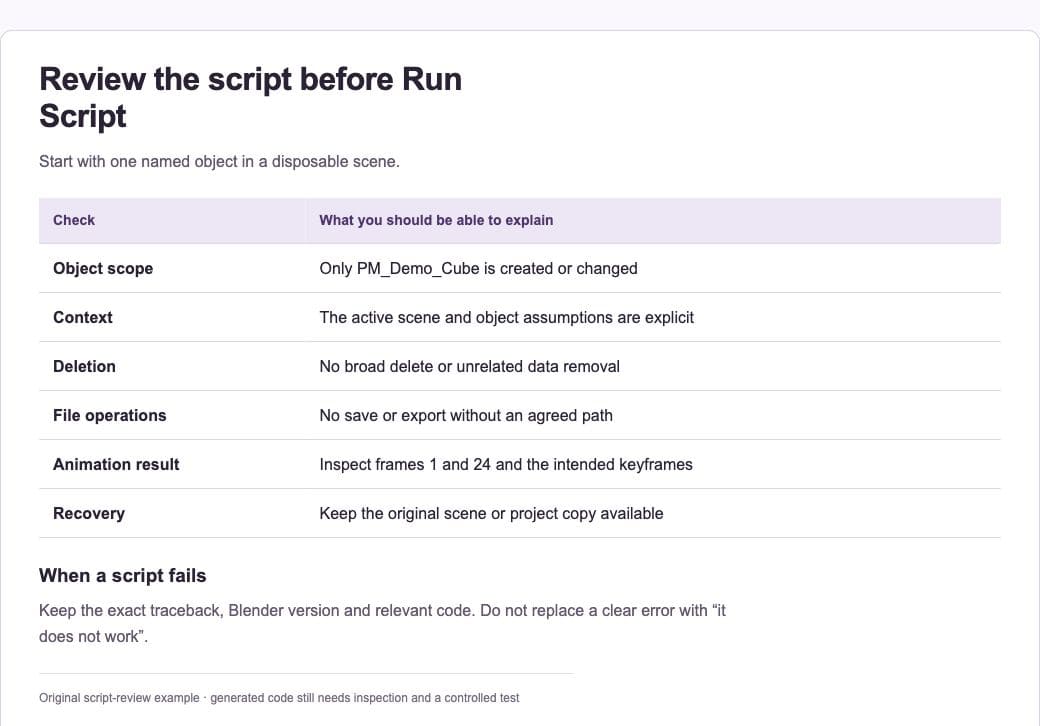
Tell Claude to create or modify only the named demonstration object, avoid deleting existing data and avoid saving or exporting without an explicit path. Ask it to explain any assumptions about the active scene, selected object or editor context.
3. Review the code before running it
Read imports, file operations, deletion calls and broad object loops. Ask for an explanation of unfamiliar operations and verify the relevant API reference. Watch for a command that affects every object when the task only concerns one. Comments explaining safety do not override what the code actually does.
4. Use Blender’s Text Editor
Open the Scripting workspace or a Text Editor, create or open the script and inspect it there. Blender’s official quickstart explains the built-in Text Editor and Run Script workflow. Keep the code separate from your production scene until the simple case behaves as expected.
5. Run a controlled test
Execute the reviewed script in the disposable scene. Inspect the named object, frame range and keyframes. Move between the specified frames and check the transformation. If there is an error, capture the traceback and the exact Blender version rather than repeatedly rerunning modified guesses.
6. Apply the proven change carefully
Once the small example works, adapt it to a copy of the real scene. Confirm object names and context again. Run the same checks, then save to a new filename when appropriate. Keep the original file available so an unexpected result can be discarded without losing the starting scene.
A prompt to adapt
Write a small Blender Python script for Blender [version]. In a disposable scene, create one object named PM_Demo_Cube and add rotation keyframes at frames 1 and 24. Do not delete existing objects, alter unrelated data, save files or export anything. Explain context assumptions and how I can inspect the result. Use the current documented API and flag anything you have not verified.
Check the result
Check the scene after running the script, not only the absence of a traceback. Confirm the intended object changed and unrelated objects did not. A script that runs successfully can still perform the wrong operation. Preserve a short record of the tested Blender version and expected result.
Common questions
Can I run a script directly in my main scene?
Use a disposable scene or a separate copy first. The same code can behave differently when selection, active objects or names differ from the example.
What should I send Claude when the script fails?
Provide the exact traceback, Blender version, the small relevant code section and what you expected. Remove private paths or unrelated project data that the diagnosis does not need.
Official references
Keep going
Use a plan-first approach when a larger script will affect an existing project. You can also build a first brief with our free prompt generator.