
A plan is valuable when it exposes assumptions before they become changes. Claude Code Plan Mode provides a useful starting point for inspecting a project and proposing work without editing it. This walkthrough uses an outdated article-listing component as the example, but the same method applies to many maintenance tasks.
Checked: 10 November 2026. Features and menu labels can vary by plan, workspace and rollout.
Before you start
Claude Code installed and signed in, a project you can inspect, and a recoverable starting state. Use a local or staging copy for changes. Do not paste production credentials into the request or give the agent broader access just to avoid a setup question.
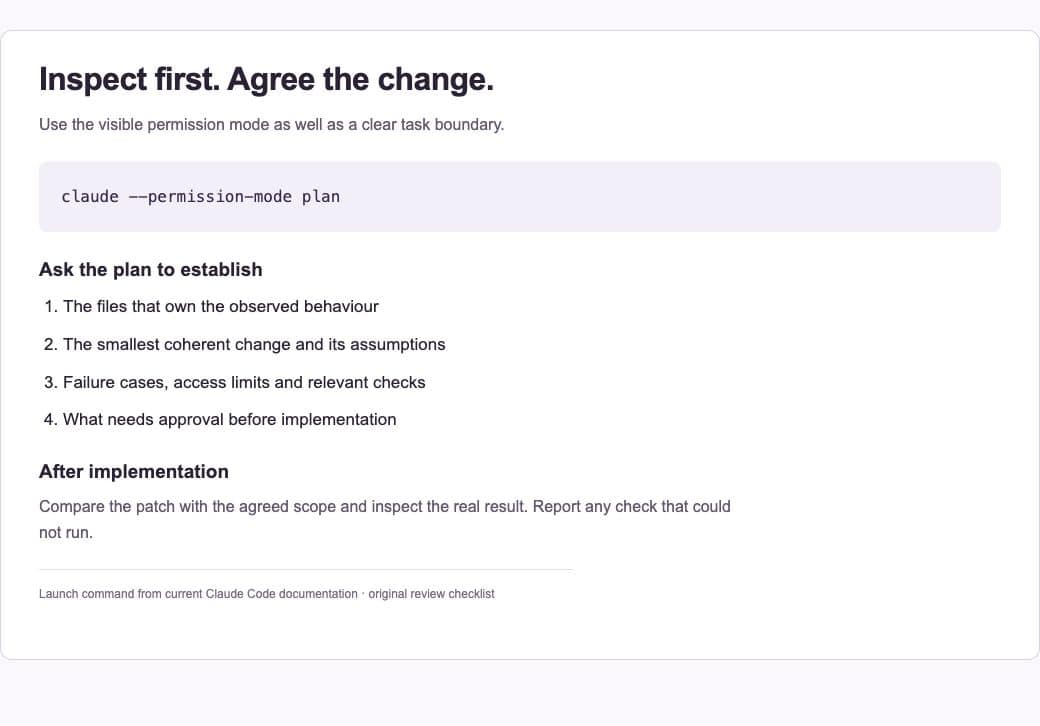
1. Start in Plan Mode
Launch Claude Code with claude –permission-mode plan, or switch to Plan Mode using the supported interface controls. In the terminal interface, Shift+Tab cycles permission modes; check the visible mode indicator. Do not assume you are in a read-only planning state merely because your prompt uses the word “plan”.
2. Describe one outcome
State the visible problem and the desired result. For example, an article archive should automatically load the next batch as the reader approaches the end, while preserving the four-column desktop grid and a usable fallback. Give the route and the relevant constraints.
3. Ask it to inspect the owning code
Have Claude find the template, query and script that control the behaviour. Request file references for the proposed changes. Ask it to distinguish what it observed from what it is assuming about the environment or deployment.
4. Review failure cases in the plan
For an automatically loading archive, the plan should consider duplicate results, a failed request, the final page and a browser without the needed capability. For a different task, choose its actual risks. A list of happy-path edits is not a complete implementation plan.
5. Agree a small implementation boundary
Clarify which files may change and what must stay outside scope. Check whether a proposed dependency, data migration or production action is actually necessary. If you approve implementation, deliberately leave Plan Mode using the appropriate controls and keep the original boundaries visible.
6. Compare the result with the approved plan
Review the patch and run relevant checks. Open the affected interface and test the failure cases that justified planning. Ask for an explanation of any material departure from the plan. A completed checklist should point to evidence, not just repeat what the agent intended to do.
A prompt to adapt
In Plan Mode, inspect this project for [specific problem]. Find the files that own the behaviour. Propose the smallest coherent change, the assumptions that need confirmation, the failure cases and the checks we should run. Do not edit files or deploy. If the current permissions do not match that boundary, stop and report it.
Check the result
Check the visible permission mode and the actual repository state. After implementation, compare changed files with the agreed scope. Keep the distinction between inspection, planning, editing and deployment explicit so a broad request does not accidentally become a production change.
Common questions
Does asking “please only plan” enforce read-only access?
Use the actual permission mode and access controls. Written instructions help communicate intent, but they are not a replacement for the tool’s permission boundary.
Should every tiny change start with a long plan?
No. Match planning effort to uncertainty and consequence. A short inspection and two clear checks can be enough for a small, reversible edit. Larger or less understood changes deserve more preparation.
Official references
Keep going
Put stable project commands and conventions in CLAUDE.md. You can also build a first brief with our free prompt generator.