
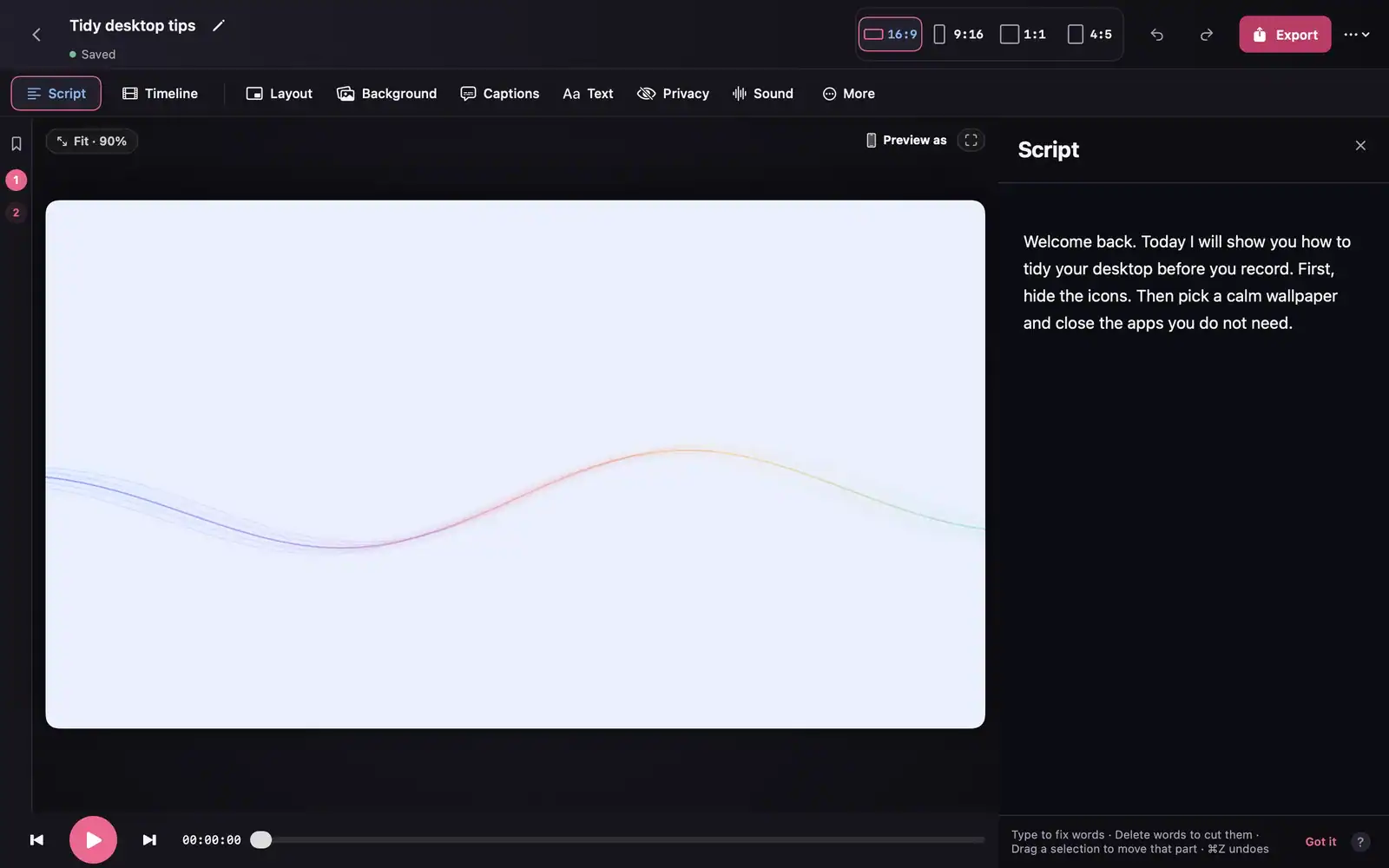
Make It a Video is a Mac screen recorder and video editor built around a practical idea: record the explanation, then remove mistakes by editing its transcript. This walkthrough follows the current official first-recording guide and uses the publisher’s editor screenshot to explain a sensible first-video workflow.
Checked: 10 November 2026. Features and menu labels can vary by plan, workspace and rollout.
Before you start
A Mac running macOS 15 or later, the app from its official website and a short demonstration to record. The current guide requires sign-in. Prepare a separate example window and remove private information from the screen before recording. Check the current download and plan details on the official site.
1. Plan a small tutorial
Choose one task a viewer can complete, such as creating a reference-image brief. Write the starting point, three or four actions and the expected result. Keep the first recording short enough that you can review it in full. Close unrelated tabs and notifications that could expose private information.
2. Install and choose the capture mode
Download from the official download page and follow its current installation guidance. In the app, choose New recording, then Screen + cam or Screen for this example. Select the intended window or display and the correct microphone. Grant only the Mac recording permissions needed for your capture.
3. Record a ten-second test
Speak at your normal level and perform one visible action. Play the test back. Confirm the right window was captured, the voice is clear and small interface text is readable. A brief test is faster than discovering at the end that the recording contains the wrong screen or a silent microphone.
4. Record the explanation
Talk through the task as if showing one person. Leave a small pause when you make a mistake and continue with the corrected sentence. Keep the cursor movements deliberate. The transcript-based editing workflow is useful because you can review and remove the unwanted passage afterwards.
5. Review automatic tidy and transcript edits
The official guide describes automatic tidy removing filler and long pauses. Use Review to inspect the changes, then edit the Script to remove other unwanted words. Listen across every cut that affects meaning or timing. Keep intentional pauses when they help a viewer follow the action.
6. Style and export the finished video
Choose a background, camera treatment and captions that support readability. Pick a wide or tall format for the destination, then export the video to a local folder. Watch the exported file from beginning to end and check captions, audio and the final frame. Keep the editable project for corrections.
A prompt to adapt
Help me plan a three-minute screen tutorial about [task]. Audience: [audience]. Return a short spoken outline, the on-screen action for each section and a final check that proves the task worked. Use only the supplied product facts. Keep the introduction brief and flag anything I need to verify in the live interface before recording.
Check the result
The current official site says projects and recordings stay on the Mac and Free exports have no watermark. Check the current plan comparison for the export quality and other features you need. This article’s procedure is based on the product documentation; review the actual installed version and its exported file for your own recording.
Common questions
What if the recording is black or silent?
Check the selected source, microphone and the app’s Mac permissions. The official permissions guide explains the relevant settings. Run another short test before recording the full tutorial.
Is transcript editing enough to finish the video?
It can speed up removing spoken mistakes, but still watch and listen to the result. A cut that reads well as text can interrupt an on-screen action or remove a useful pause.
Official references
- Make It a Video: first screen recording
- Make It a Video: transcript editing
- Make It a Video: official screenshots
Keep going
Plan a clear creative sequence before recording the walkthrough. You can also build a first brief with our free prompt generator.